Showing posts with label joomla. Show all posts
Showing posts with label joomla. Show all posts
Monday, April 19, 2010

Tuesday, April 13, 2010
Joomla puts meta tags
Joomla automatically puts meta tag generator with comments about joomla in the site. here is how to remove tht
Thursday, April 1, 2010
Count number of modules in a joomla position
<?php if (mosCountModules('left')>0) { ?>(where left is the position name)
http://forum.mamboserver.com/showthread.php?t=41728
Wednesday, March 31, 2010
Set title of Joomla page
$mydoc =& JFactory::getDocument();
$mytitle = $mydoc->getTitle();
$conf =& JFactory::getConfig();
$sitename = $conf->getValue('config.sitename');
$mydoc->setTitle($mytitle.' - '.$sitename);
http://joomlapanel.com/joomla-article/58-page-titles-in-joomla-15.html
Saturday, March 13, 2010
Wednesday, March 10, 2010

Thursday, February 18, 2010
Assign file permissions in jumpbox
These files were not modified through Core FTP Lite or any other ftp client i was using, so I had to login to the jumpbox as root and pass the chmod command to change permissions
sudo –i
(logs you in temporarily as root)
chmod og=rw /var/data/joomla15/xyz/abc.php
http://www.jumpbox.com/archives/140_how-to-access-a-jumpbox-as-root.html
Tuesday, February 16, 2010
Get Current URL with PHP
$_SERVER["HTTP_HOST"] . $_SERVER["REQUEST_URI"]
http://www.scriptygoddess.com/archives/2007/01/29/get-current-url-with-php/
Friday, February 12, 2010
Install IONCube on Joomla Jumpbox
I spent 3-4 hours in setting up IONCube on my joomla jumpbox but there were a lot of access issues :S
Finally here is the set of steps that lead me to its installation:
- download the ioncube loader from here:
http://www.stevekallestad.com/wiki/IonCube_Installation - Extract the files and copy the files to storage/joomla15/ioncube/
- Open your browser and browse to the ioncube-loader-helper.php file
- Check to see whats the status of loader file currently on your jumpbox
- We will be using php.ini setup to install the loader. php.ini is located in etc/php5/apache2/ folder.
- Open your jumpbox and click on Alt+F1 to go to the console
- type: sudo nano /etc/php5/apache2/php.ini
- now add another entry in this file:
zend_extension = /var/data/joomla15/ioncube/ioncube_loader_lin_5.2.so - Save this file and restart the apache server:
sudo /etc/int.d/apache2 restart
- Now browse again to the ioncube-loader-helper.php. it should show the following screen:

Thursday, January 28, 2010
Tuesday, January 19, 2010

Joomla articles not updating
I was adding a new div in joomla articles but whenever i saved or applied the changes, all my changes reverted back and the div was lost from even the html source of the article. I spent almost 3 hours searching n trying different stuff.
The problem was that joomla articles dont allow empty divs
so:
<div class=”abc”></div>
would never show up neither be saved in the code
so i changed it to
<div class=”abc”> </div>
Enable remote access on Joomla Jumpbox Database
We have to enable remote access on a joomla jumpbox db in order to access it from the GUI tools which are installed on my actual machine (While jumpbox is in a VM on my actual machine)
On your VMWare player, click Alt + F1 to go to the console:
In console, write the following to get the root password:
sudo grep root /jumpbox/lib/appdata.yml
You will see a line such as the following:
root: pa$$word
where pa$$word is the password of your root user
To start using the db as the root user:
mysql -u root -p
#or
mysql -u root -ppa$$word
In order to allow remote access on the database, do the following:
sudo nano /etc/mysql/my.cnf
Find the bind-address property, and replace it with the IP of your jumpbox
e.g. I modified
#bind-address = 127.0.0.1
to
#bind-address = 192.168.1.36
Restart mysql:
sudo /etc/init.d/mysql restart
Now grant all privileges to a remote db user
GRANT ALL PRIVILEGES ON *.* TO ria@'%' IDENTIFIED BY 'ria0';
where ria is the user name, and ria0 is the password of a remote user (this user need not be already existing in the db, it creates a new user if it does not exist)
Now download the GUI tools for mysql and try accessing the db using
db host: 192.168.1.36 (your jumpbox host)
user: ria
pw: ria0
I started receiving an error saying
host 'mycomputername' is not allowed to access this mysql
(I dont remember the exact error string sorry)
To solve this problem, i went back to the console and ran this command:
GRANT ALL PRIVILEGES ON *.* TO ria@'mycomputername' IDENTIFIED BY 'ria0';
(We can also use IP of the external machine instead of the computer name)
Now you will be able to access the joomla jumpbox database externally.
http://wiki.jumpbox.com/doc/runtime/faq/access_mysql
http://www.jumpbox.com/node/1101
http://www.cyberciti.biz/tips/how-do-i-enable-remote-access-to-mysql-database-server.html
Monday, January 18, 2010
Using kickstart to restore a backup on jumpbox site
- Browse to kickstart.php
- choose a backup to restore from the dropdown
- choose ftp mode
- localhost
- port 21
- user
- password
- initial directory :- /
- Click Start
- When it asks for the db access:
- Host: enter the IP of your jumpbox e.g. 192.168.1.36
- user: user which has remote access enabled on the db
- password
- database name: (I was using the db of the existing site but it was giving me could not find the database error, so i created a new empty db and gave its name here, then the restore continued)
Set up Joomla kickstart on JumpBox
While using WAMP, you can install kickstart this way:
I placed my Joomlapack archive file in the WWW directory of my WAMP.
I copied the extraced Kickstart files there.
I extracted the archive file into the WWW directory.
Then I went to http://localhost/administrator and a new Joomla installation began.
At the end of the installation, there was my site.
While using Jumpbox:
I installed Joomla pack on my joomla site, and then i extracted the contents of Kickstart in /storage/joomla15/
Also placed the backup file in the same folder. Then I browsed
http://192.168.1.36/kickstart.php
Thursday, November 5, 2009
Wednesday, November 4, 2009
Access Joomla files - Tutorial
· Access your jumpbox site admin view (usually https://youripaddress:3000/) and go to SSH/SFTP
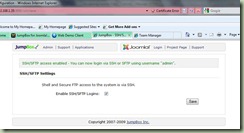
· After enabling; open an FTP client e.g. Core FTP Lite; set it to SFTP and use your admin user and password; then give the IP of the jumpbox server


· U can browse through the filesystem now

Subscribe to:
Posts (Atom)